
Table of Contents
- Quick Guide for Mastering PowerPoint Presentation
- What is Microsoft PowerPoint (What Are the Uses of PowerPoint Templates )?
- PowerPoint Basics: Understanding the Workspace Components
- Key Features to Know to Get Started with PowerPoint
- Step-by-Step: How to Create a New Presentation in PowerPoint
- What Are PowerPoint Templates? Where to Find Best PPT Templates
- Golden Rules of PowerPoint Design – PowerPoint Tutorial
- Designing in PowerPoint Isn’t for You? We Have the Solution!
PowerPoint 101: The Beginner Guide to Use Microsoft PowerPoint



Quick Guide for Mastering PowerPoint Presentation
Opening a blank PowerPoint canvas for the first time can be incredibly intimidating. With endless menus, complex ribbons, and a massive array of formatting options staring back at you, it is easy to feel overwhelmed.
But here is the truth: mastering PowerPoint does not require a graphic design degree. It simply requires understanding a few core basics, knowing where the most important tools live, and utilizing the right shortcuts.
In this comprehensive guide, we will walk you through everything you need to know to get started. From navigating the interface to building your first deck, you will learn the essentials. And if you want to skip the learning curve entirely, we will show you how to use pre-built templates to create a stunning presentation in minutes.
What is Microsoft PowerPoint (What Are the Uses of PowerPoint Templates )?
Microsoft PowerPoint is a powerful presentation software developed by Microsoft. It allows users to create electronic slideshows comprised of text, photos, illustrations, drawings, tables, graphs, and movies. It is the global standard for visual communication.
Because of its flexibility, PowerPoint is used across almost every industry. Its best uses include:
- Business Pitches: Securing funding or closing sales with structured, visual narratives.
- Educational Lectures: Breaking down complex academic subjects for students.
- Corporate Training: Onboarding new employees with standardized, easy-to-digest information.
- Webinars & Conferences: Guiding large audiences through keynote speeches and digital events.
PowerPoint Basics: Understanding the Workspace Components
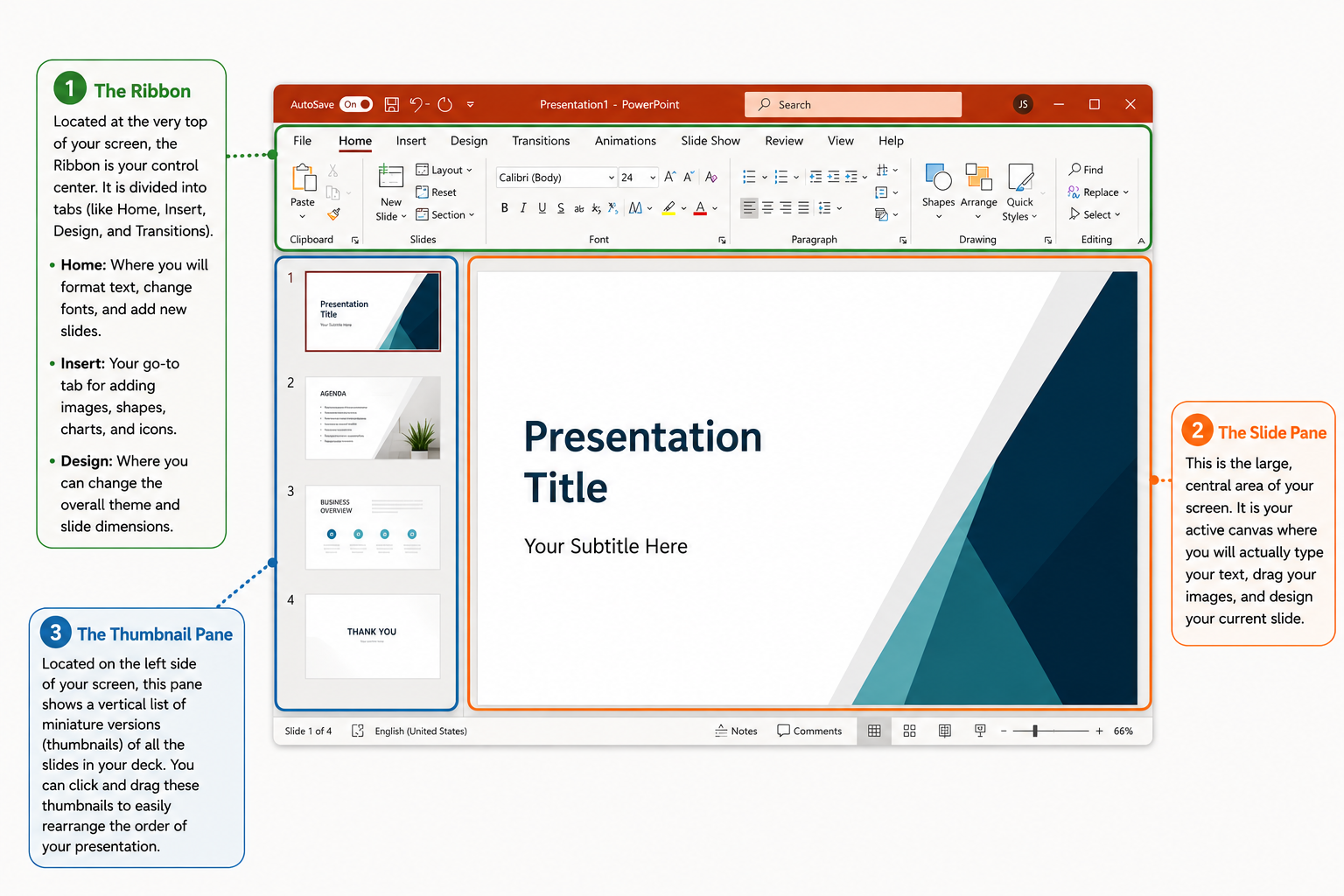
Before you start clicking around, it helps to understand the geography of your workspace. Here are the three main components of the PowerPoint interface you will use every day:
1. The Ribbon
Located at the very top of your screen, the Ribbon is your control center. It is divided into tabs (like Home, Insert, Design, and Transitions).
- Home: Where you will format text, change fonts, and add new slides.
- Insert: Your go-to tab for adding images, shapes, charts, and icons.
- Design: Where you can change the overall theme and slide dimensions.
2. The Slide Pane
This is the large, central area of your screen. It is your active canvas where you will actually type your text, drag your images, and design your current slide.
3. The Thumbnail Pane
Located on the left side of your screen, this pane shows a vertical list of miniature versions (thumbnails) of all the slides in your deck. You can click and drag these thumbnails to easily rearrange the order of your presentation.
Key Features to Know to Get Started with PowerPoint
You don’t need to learn every single feature to create a great presentation. Focus on mastering these three essentials:
- Inserting Media: PowerPoint allows you to seamlessly insert high-resolution images, video files, and audio clips directly onto your slides. Visuals are what keep your audience engaged.
- SmartArt Graphics: Instead of manually drawing boxes and arrows, the SmartArt feature instantly transforms bulleted lists into professional-looking flowcharts, cycles, and hierarchy diagrams.
- Alignment Tools: Nothing looks more amateurish than crooked text boxes. PowerPoint’s alignment tools (found under the Arrange menu) allow you to perfectly center and distribute objects with a single click.
Step-by-Step: How to Create a New Presentation in PowerPoint
Ready to build your first deck? Follow this simple, 5-step process:
- Step 1: Choose a Layout: Click on
Home > New Slide. You will see options like “Title Slide,” “Title and Content,” or “Blank.” Choose the one that fits the information you want to share. - Step 2: Add and Format Text: Click inside the placeholder boxes that say “Click to add text” and start typing. Use the Home tab to adjust your font size and color.
- Step 3: Insert High-Quality Visuals: Navigate to
Insert > Picturesto upload an image from your computer. Drag the corners of the image to resize it without distorting the proportions. - Step 4: Apply Simple Transitions: Go to the
Transitionstab and select a subtle effect like “Fade” to smooth the jump from one slide to the next. - Step 5: Save and Export: Never lose your work! Click
File > Save Asto save your deck as a .pptx file. You can also choose to export it as a PDF if you need to email it to a client.
What Are PowerPoint Templates? Where to Find Best PPT Templates
A PowerPoint template is a pre-designed, fully formatted presentation file. Instead of staring at a blank white slide and trying to figure out where to place your text and images, a template does all the heavy lifting for you. It comes equipped with built-in color palettes, custom fonts, perfectly aligned layouts, and placeholder graphics.
While PowerPoint offers a few default themes, they are often overused and look incredibly dated. If you want your presentation to look like it was crafted by an industry leader, you need premium designs.
PresentoVerse – Library of Free Professional Infographics
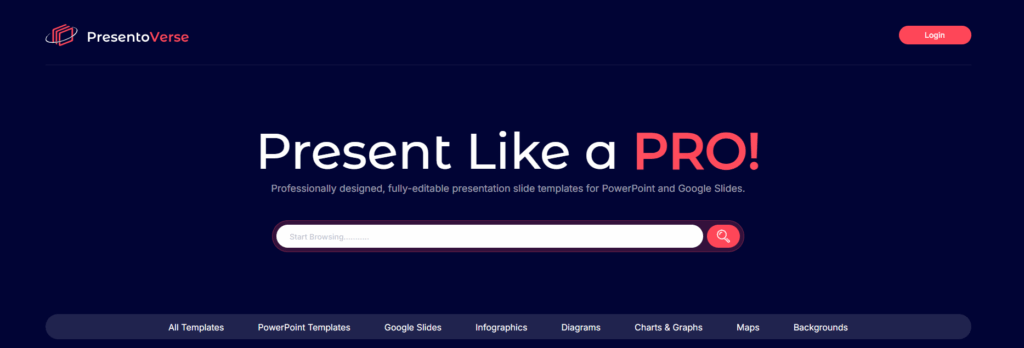
PresentoVerse is the ultimate presentation shortcut designed to save you hours of tedious formatting. This premium library is packed with modern, pixel-perfect, and 100% editable templates tailored for every corporate, creative, and tech industry use case. With an intuitive structure and sleek aesthetic, it allows you to easily plug in your content and step into any meeting with absolute confidence.
SlideBazaar – 50000+ Editable PowerPoint Templates and Google Slides
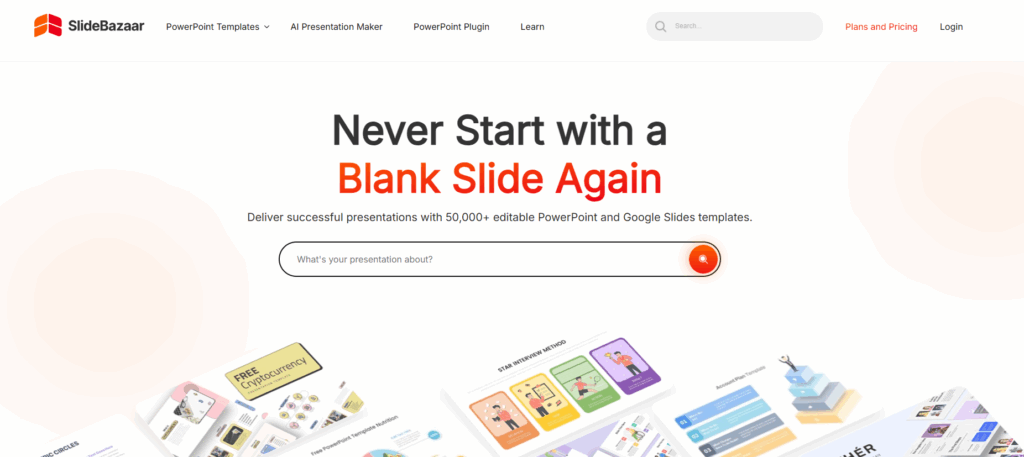
SlideBazaar is an excellent resource for business-focused decks, offering a massive variety of structured corporate templates, pitch decks, and data-driven charts. It provides users with highly editable timelines, SWOT analyses, and workflow diagrams that are essential for high-stakes professional meetings. Additionally, their seamless plugin options and extensive catalog make customizing your corporate slides incredibly efficient.
SlideKit: From Concept to Presentation in Minutes

SlideKit is a highly creative platform perfect for finding vibrant layouts, dynamic infographics, and visually engaging slide structures. It specializes in fully customizable themes for both PowerPoint and Google Slides, ranging from complex project management plans to niche aesthetic layouts. If you need highly specific diagrams, performance dashboards, or creative roadmaps, SlideKit offers a vast and unique selection.
SlideChef: Library of Free Presentation Template – Creative Educational, Business, Medical Templates
SlideChef is a reliable hub packed with highly versatile, ready-to-use slide designs that are perfect for both professional business presentations and educational environments. They offer a great mix of clean, structured corporate layouts alongside highly creative, thematic decks. It is an excellent choice for users looking for quick, easily customizable, and visually appealing alternatives to standard Microsoft default themes.
SlidesDepot – Professional Templates That Make Your Ideas Stand Out
SlidesDepot is a fantastic go-to option for easily accessible, comprehensive professional infographics and structured presentation templates. The platform provides an extensive collection of robust data visualization tools and corporate slide decks designed specifically for clarity and impact. From complex process flows to high-level executive summaries, their templates are built to help professionals present detailed metrics without overwhelming their audience.
Golden Rules of PowerPoint Design – PowerPoint Tutorial
- Rule 1: Don’t Create Walls of Text: Your slides are meant to support your speech, not act as a teleprompter. Use the 6×6 rule: aim for no more than 6 bullet points per slide, and no more than 6 words per line.
- Rule 2: Stop Overusing Animations: Spinning text, bouncing images, and loud sound effects are distracting and unprofessional. Stick to simple “Fade” or “Appear” animations to introduce your points clearly.
- Rule 3: Keep Colors Simple: Always prioritize readability. Use a maximum of 3 to 4 colors in your deck, and ensure there is high contrast between your text and your background (e.g., dark text on a light background).
Pro Tip: When in doubt, leave empty space! White space (or negative space) around your text and images gives your slides room to breathe and makes your presentation look incredibly polished.
Designing in PowerPoint Isn’t for You? We Have the Solution!
Learning the basics of PowerPoint is a great skill, but let’s be honest: building complex timelines, data-driven charts, and striking visual layouts from scratch takes hours of frustrating manual labor.
If you don’t have the time to become a graphic designer, you don’t have to.
Skip the blank canvas and the learning curve entirely. PresentoVerse is your ultimate presentation shortcut. Our library is packed with 100% editable, professionally designed PowerPoint templates tailored for every industry and use case. All you need to do is download the deck, drop in your text, and present to your audience with absolute confidence.
Explore the PresentoVerse PowerPoint Template Library Today
-
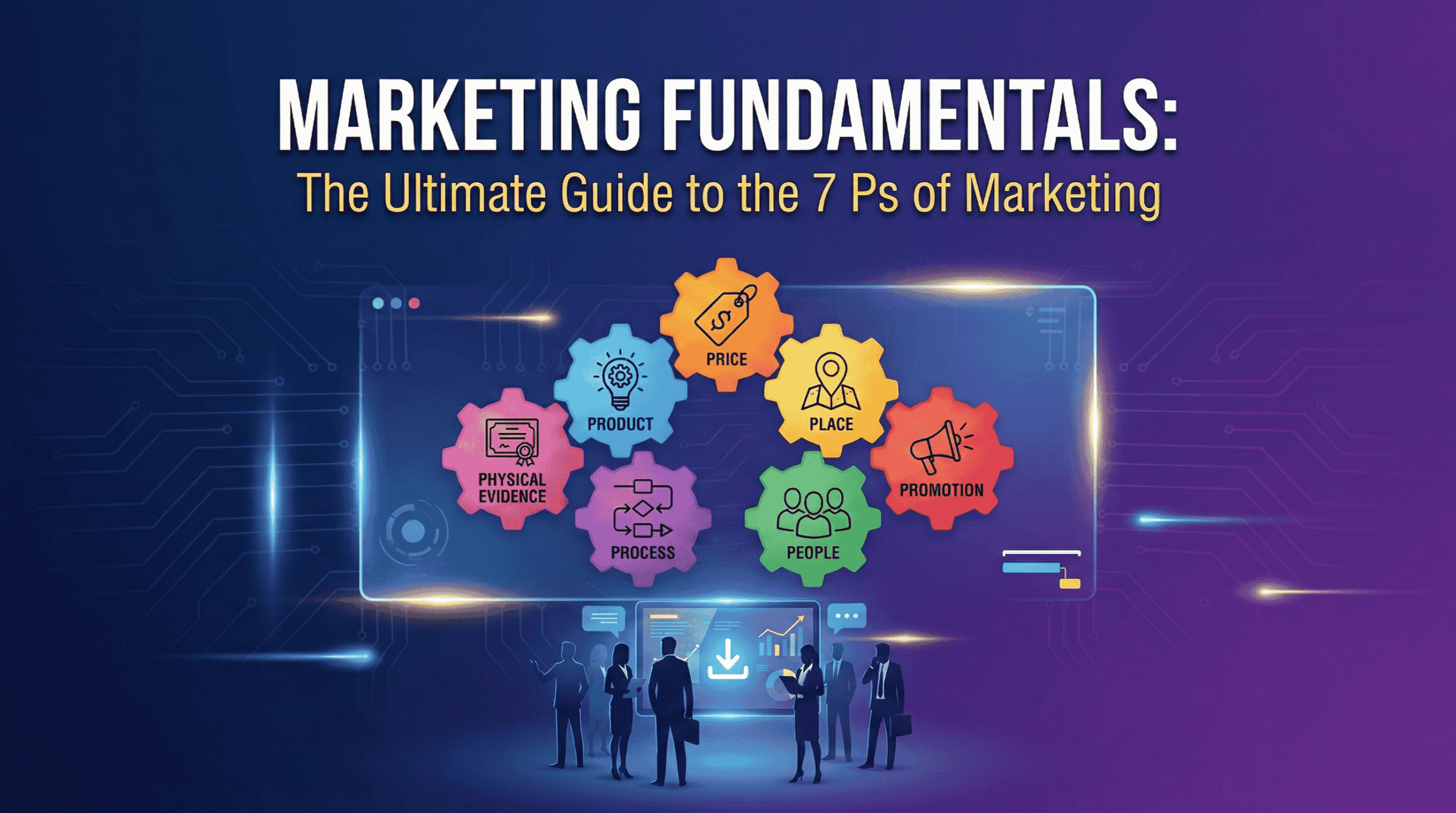
Marketing Fundamentals: The Ultimate Guide to the 7 Ps of Marketing
Marketing Fundamentals: Everything You Need to Know to Develop a Marketing Strategy Marketing isn’t just advertising; it’s the engine that drives your entire business. While catchy slogans and viral videos get the glory, the real work happens in the strategy. At its core, marketing is the process of identifying, anticipating, and satisfying customer requirements profitably….
-
How to Write an Executive Summary (With Professional Executive Summary Templates)
Guide to Writing a Powerful Executive Summary Let’s be honest: busy executives, angel investors, and key stakeholders rarely have the time—or the patience—to read a dense, 50-page business plan or project proposal. In the fast-paced corporate world, decisions are often made based entirely on the very first page they read. If you don’t capture their…
-
How to Start a PowerPoint Presentation: 7 Strong Opening Strategies for Success
Stop Boring Your Listeners: Dynamic Ways to Begin Your Next PowerPoint Presentation There is nothing more intimidating than a blinking cursor on a blank white slide. You know your topic inside and out. You have done the research. Yet, when it comes time to design that first slide and plan your opening remarks, you freeze….
-
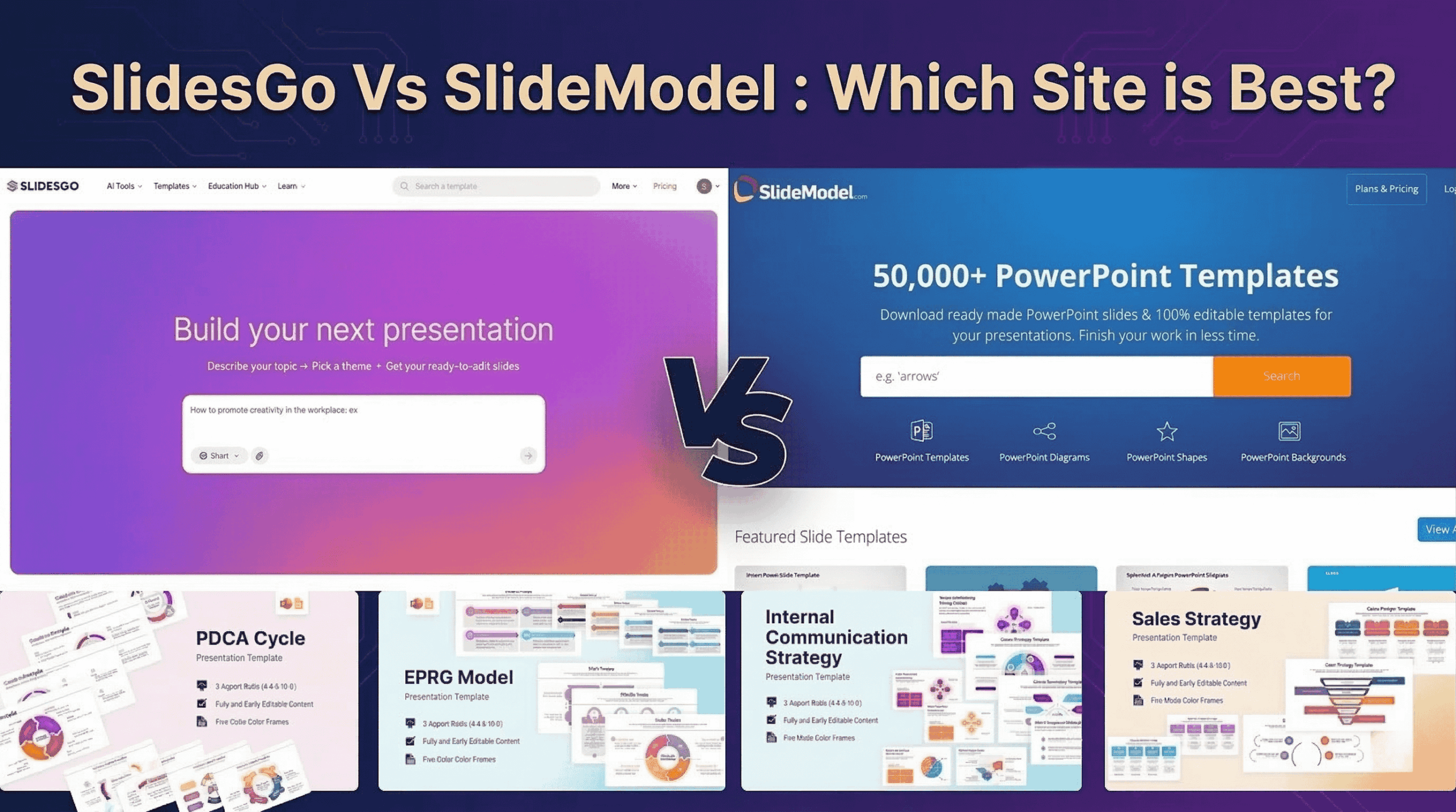
Slidesgo vs Slidemodel Comparison – How PresentoVerse Can be Smarter Alternatives
Slidesgo vs Slidemodel: A Detailed Head-to-Head Comparison Every presentation creator knows the quiet frustration of staring at a blank PowerPoint or Google Slides canvas while the clock is ticking and the pressure builds. You need a polished design that commands attention, but you can’t afford to waste hours building it from scratch. For most professionals,…
Related Blogs
-
Marketing Fundamentals: The Ultimate Guide to the 7 Ps of Marketing
Marketing Fundamentals: Everything You Need to Know to Develop a Marketing Strategy Marketing isn’t just advertising; it’s the engine that drives your entire business. While catchy slogans and viral videos get the glory, the real work happens in the strategy. At its core, marketing is the process of identifying, anticipating, and satisfying customer requirements profitably….
-
How to Write an Executive Summary (With Professional Executive Summary Templates)
Guide to Writing a Powerful Executive Summary Let’s be honest: busy executives, angel investors, and key stakeholders rarely have the time—or the patience—to read a dense, 50-page business plan or project proposal. In the fast-paced corporate world, decisions are often made based entirely on the very first page they read. If you don’t capture their…